Education How-to

What is a virtual classroom? Tips to set one up

7 min read

Updated on November 15, 2025

Published on November 15, 2025

Virtual classroom explained: Best practices and how to set one up

By 2029, Statista estimates that 87.6 million students will be enrolled in online education. Learners log into virtual classrooms to earn new qualifications and prepare for new careers without ever setting foot on campus. According to Future Market Insights, the virtual classroom market is booming and expected to grow from $20 billion in 2024 to $61 billion by 2034. Hybrid learning, like hybrid working, is here to stay.

Virtual classroom technology offers advantages for students, instructors, and educational institutions by making learning environments more accessible. A successful virtual classroom provides opportunities for engagement and collaboration, not just one-way discussion. Here are some tips for achieving the right setup to improve the learning experience.

What is a virtual classroom?

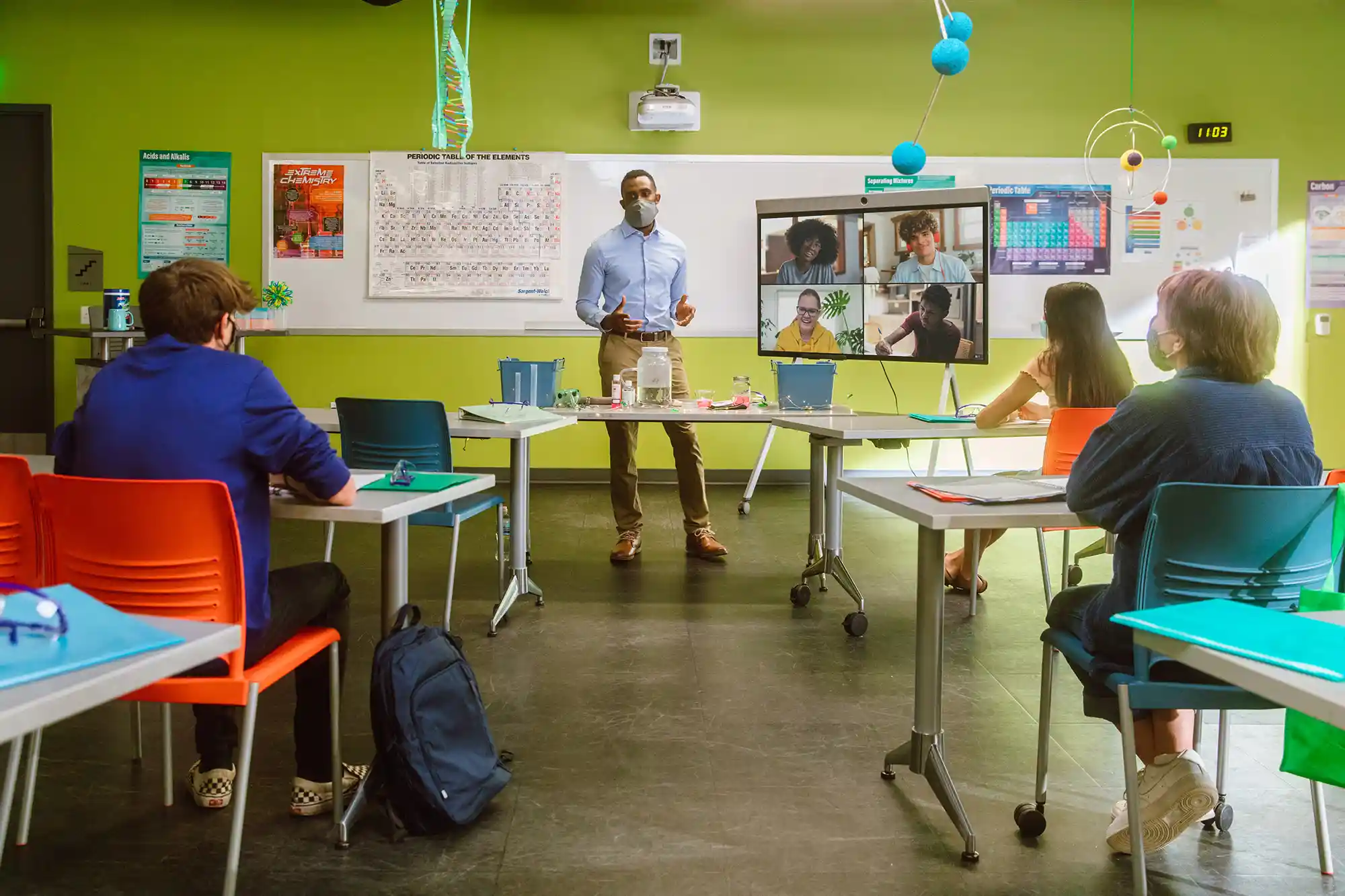
A virtual classroom is an online space where students and teachers can interact and learn together in real time, despite being physically apart. Using video conferencing tools, interactive whiteboards, chat functions, and multimedia resources, virtual classrooms help facilitate live instruction, group discussions, and instant feedback. 

This digital space replicates many aspects of in-person education, offering flexibility and accessibility to accommodate diverse learning styles and needs.

Advantages of virtual classes

Virtual classrooms are versatile platforms that have the potential to transcend traditional boundaries. Whether in fully remote setups or as part of hybrid learning models, they can foster inclusive and engaging learning environments and may offer a host of other possible benefits.

  • Cost efficiency: Virtual classrooms can reduce expenses associated with commuting, classroom maintenance, and physical resources.
  • Global connection: The technology allows collaboration and cultural exchange among students and educators worldwide.
  • Accessibility: Virtual classroom software opens the door to education for remote or underserved areas, increasing inclusivity and access to learning opportunities.
  • Personalized learning: Online teaching enables tailored educational experiences through adaptive learning technologies and individualized feedback.
  • Hybrid learning: Virtual classrooms allow educators to integrate traditional teaching methods with online tools, offering a blend of face-to-face and remote learning options.
  • Increased engagement: Interactive multimedia tools and gamification techniques enhance student engagement and motivation.

Comparison chart between virtual and physical classroom

Components of a virtual classroom

For an ideal virtual classroom experience, you’ll need both hardware and software components.

Hardware

Students and teachers need some basic hardware to take part in virtual classroom sessions. These tools make learning more engaging and immersive:

  • Computer/tablet: These are the primary platforms for accessing virtual classroom tools and participating in online activities.
  • Stable internet connection: A reliable internet connection allows for smooth, uninterrupted virtual communication and access to online resources.
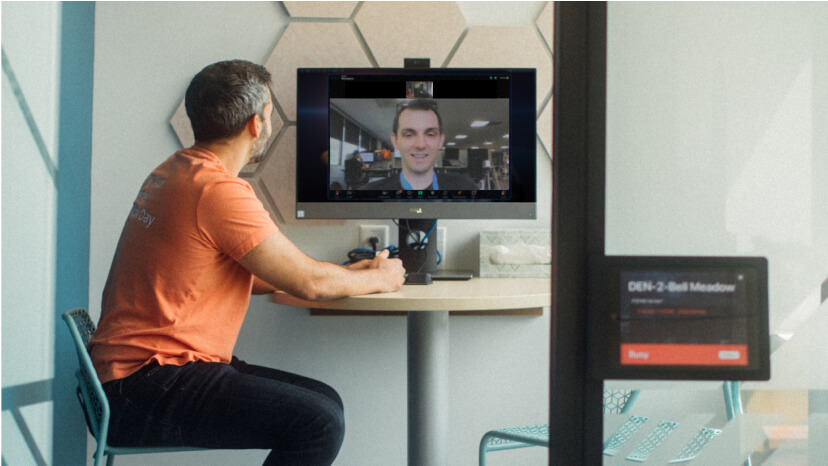
  • Webcam: Visual interaction through a webcam makes online virtual classrooms more engaging and personal.
  • Headphones: Using headphones minimizes background noise and improves audio clarity for both students and teachers.
  • Additional monitors (optional): Extra monitors facilitate multitasking and allow for easier management of multiple resources and tools simultaneously.

Software

Effective virtual classrooms rely just as much on software as hardware. Choose these interactive tools to gain and keep student attention and enthusiasm:

  • Video conferencing tools: These are essential for live teaching sessions, real-time communication, and maintaining a classroom environment.
  • Collaborative tools: Shared whiteboards, breakout rooms, and collaborative documents help support group work and interactive learning activities in live virtual classrooms. Zoom Team Chat can also help student groups stay connected between lessons.
  • Screen sharing tools: Teachers can more easily display presentations and demonstrate concepts directly to students
  • Whiteboard tools: These tools enable dynamic teaching methods, such as drawing and annotating in real time, to enhance understanding. Check out Zoom’s whiteboard education tips for creative ways educators are making the most of this feature.
  • Learning management systems: Centralize course materials, assignments, and grades, facilitating organized and streamlined learning experiences.
  • Assessment tools: Engage students with interactive quizzes and assessments to monitor understanding and progress.
  • File sharing tools: Simplify the distribution and submission of documents and assignments for easy access and collaboration.

How to choose a virtual classroom platform

Choose a virtual classroom solution that simplifies teaching, learning, and course management. The easier the software is to use, the better the outcomes, whether you’re teaching younger learners or providing professional development courses to your staff or customers.

Look out for these core features in a virtual classroom platform:

  • Easy access: Pick a platform that works on web browsers and mobile devices, or have a dedicated desktop or mobile app. Students who use tools that are familiar to them will find onboarding and course participation much easier.
  • Teacher-friendly: Platforms like Zoom support educators with features like virtual classroom layouts that let you drag and drop students into your desired screen position with a custom gallery view, help keep the focus on you when you’re delivering a lesson, and offer live transcription to support accessibility.
  • Integration with other apps: Choose a virtual classroom platform that connects with the other apps you use. For example, you can integrate Zoom with single sign-on (SSO) identity providers for easy log-ins, Outlook and Google calendars, and learning management systems like Blackboard and Canvas via the Zoom LTI Pro app. Integrations mean you can spend less time on admin and more time on teaching.
  • Robust security: Educational materials and student information should remain secure at all times. With Zoom’s security settings, you can require all participants to enter a passcode to log in or only permit access to students who have a school email address or join via SSO.

Best practices to secure a Zoom virtual classroom

Virtual classroom training and learning platforms are packed with features so everyone can get the most out of the learning experience. Certain strategies help create a lively and inclusive online environment where students can thrive and engage fully in their education while promoting a secure experience.

Lock your virtual classroom

Locking your virtual classroom enhances security by preventing unauthorized access and disruptions during teaching sessions. It also means that only intended participants, such as enrolled students and invited guests, can join the session, fostering a focused and controlled learning environment.

How to lock your Zoom classroom

Control screen sharing

Controlled screen sharing in a virtual classroom empowers educators to manage and direct the flow of information during lessons. It allows only relevant content to be displayed to students at appropriate times, enhancing focus and reducing distractions. By controlling screen sharing, teachers can maintain the pace of instruction, clarify concepts effectively, and guard against unauthorized sharing of sensitive information.

If students need to share their work with the group, you can allow screen sharing in the Zoom host controls:

  1. Click the arrow next to Share Screen. 
  2. Navigate to Advanced Sharing Options.
  3. Under “Who can share?” choose “All participants.” 
  4. Close the window. 

You can also toggle sharing privileges under the Security icon in your window or change the default sharing option to All Participants in your Zoom settings

How to manage screen sharing

Enable the waiting room

Virtual waiting rooms enhance security by allowing hosts to screen and admit participants individually to the Zoom Meeting. 

While hosting a Zoom virtual class, this feature is on by default for K-12/primary and secondary education users. You can also send people already in the meeting back to the waiting room — here’s how:

  1. Go to the individual name in the Participants panel. 
  2. Select More to the right of their name.
  3. Send to the waiting room. 
  4. The selected participant will be removed from the live meeting and placed into the virtual waiting areas.

How to enable the waiting room

Best practices to keep in mind while hosting a virtual classroom

Lock down the chat

Teachers can restrict the in-class chat so students can’t privately message other students. Locking down chat helps maintain focus during instructional sessions by reducing distractions and off-topic conversations. It also enhances classroom management by preventing disruptions and promoting a more secure learning environment.

When using Zoom, we recommend controlling chat access from the Security icon (rather than disabling chat altogether in your settings) so students can still interact with the teacher as needed.

How to control chat access

Remove a participant

Removing a participant from a virtual class can help keep things on track. It helps reduce distractions and deliver smoother sessions by eliminating disruptive behavior or technical issues. Plus, it shows that respecting the class rules and maintaining a positive environment is a top priority, which ultimately supports better learning experiences for everyone.

If someone who’s not meant to be there somehow manages to join your virtual Zoom classroom, you can easily remove them from the Security icon or from the Participants panel. Here’s how

  1. Mouse over a participant’s name in the Participants panel.
  2. Select “Remove.” 
  3. Click to remove them from your virtual classroom, and they won't be allowed back in.

How to remove a participant

Report a user

Reporting a user in a virtual class is sometimes necessary to help everyone feel respected and safe. It helps address disruptions or rule violations quickly so the class can stay focused on learning together in a positive atmosphere.

While using Zoom, teachers and other hosts can report users to Zoom’s Trust & Safety team, who will review any potential misuse of the platform and take appropriate action. Find this option within our Security icon, where you can attach screenshots and other documentation as needed.

How to report a user

Suspend participant activities 

If your class is getting disrupted, hosts and co-hosts can pause the meeting to remove and report the offending party and prevent further disruption.

To suspend participants in a Zoom class: 

Click the Security icon and select “Suspend Participant Activities” to temporarily halt all video, audio, in-meeting chat, annotation, screen sharing, and recording, and to end breakout rooms. You can resume the class by re-enabling the individual features.

How to suspend a meeting
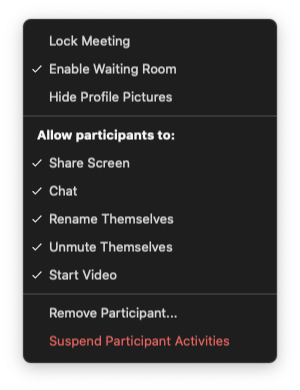
Suspend participant activities

Disable participant renaming

You can disable the ability for any Zoom participant to rename themselves at the account, group, and user level in your settings. Or, if class is already in session, you can toggle this capability in-meeting under the Security icon.

How to restrict renaming

All of the above features can be found via the Security icon on your meeting toolbar. Here’s a video overview of those options:

https://youtu.be/6JbDfXIElT0

Enable security options when scheduling a class

When scheduling a virtual class, it’s crucial to prioritize security features for a smooth and focused learning environment. You can create a passcode to control who joins, require registration to keep track of attendees, and use random meeting IDs to help prevent unauthorized access.

For added control during class, consider options like disabling annotation on shared content and allowing only authenticated users from your school community to join. Inside the meeting, you have tools to manage student behavior, such as muting or disabling video when needed, which helps minimize distractions so students can concentrate on the lesson.

Tip: Read our parents’ guide for talking to kids about how to use Zoom safely.
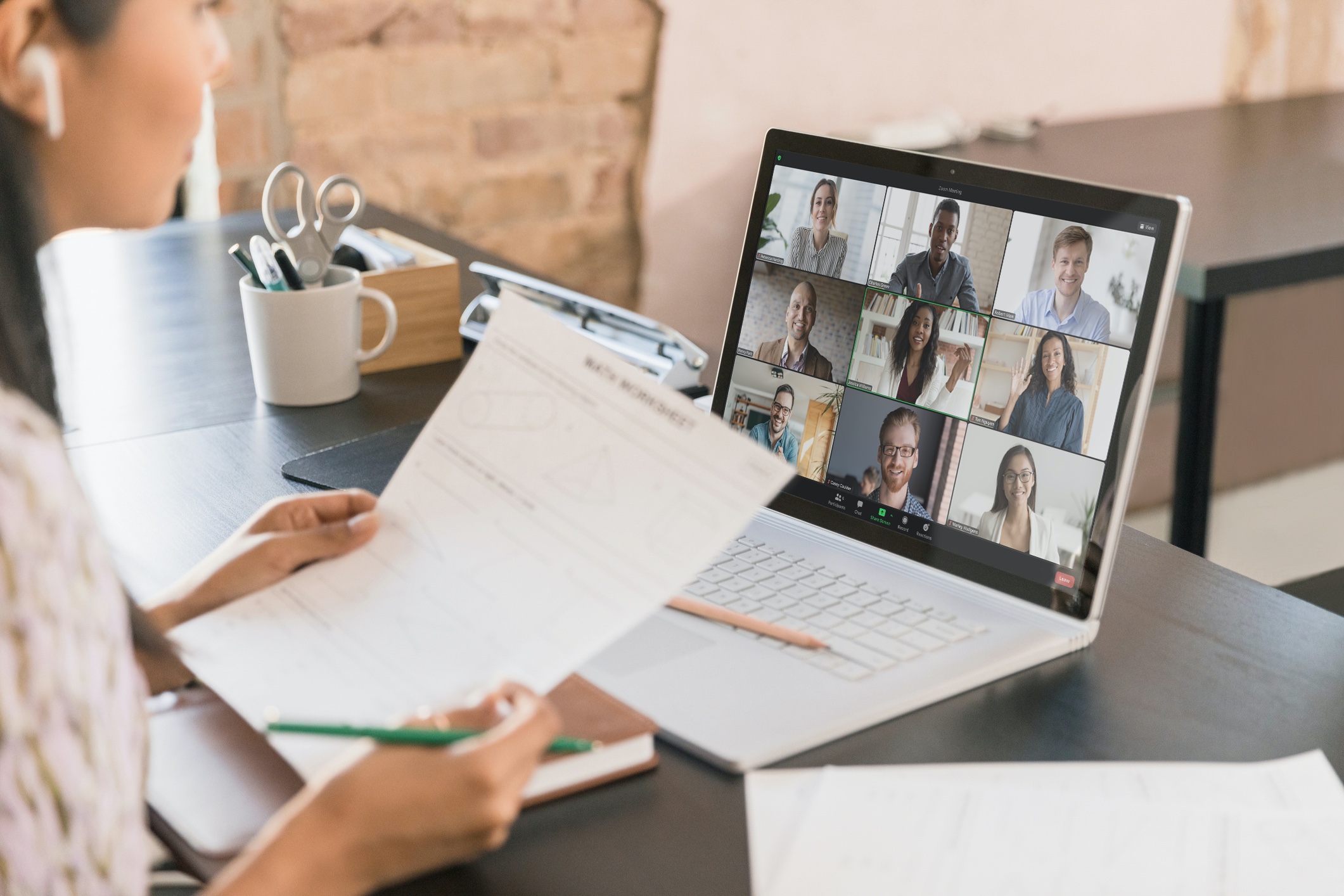
Build your virtual classroom with Zoom

Incorporating these best practices and using the diverse tools available can empower educators to create engaging, secure, and effective virtual classrooms that meet the evolving needs of modern education.

We invite you to learn about the additional benefits of Zoom for Education for virtual learning and remote education.

Editor’s note: This post was updated from the original December 2020 version to include the most up-to-date information on securing your online classrooms.

Our customers love us

Okta
Nasdaq
Rakuten
Logitech
Western Union
Autodesk
Dropbox
Okta
Nasdaq
Rakuten
Logitech
Western Union
Autodesk
Dropbox

Zoom - One Platform to Connect